 Munshi
To get started with Munshi, install it, sign in with your phone number and the 6-digit SMS code, choose Urdu or English, add your business and first customer, then record credit with You gave and payments with You got. Turn on App Lock and a Google Drive backup, and you are set. It takes about ten minutes. Munshi is free on Android and iPhone, works offline, and is a product of DIGIT.
1. Install and sign in
Install Munshi from Google Play or the App Store. Enter your phone number; we text you a 6-digit code. There is no password to remember. If you change phones later, sign in with the same number and your records come back from the cloud.
2. Choose Urdu or English
Open Settings → Language and choose Urdu or English. The whole app, and the statements and reminders you share, follow it. You can switch at any time. For a full Urdu walk-through, see how to set up a khata app for Android in Urdu.
3. Add your business
Enter your business name and type when asked. You can add more businesses later (up to 5), each with its own customers, Cash Book, bank and expenses.
4. Add your first customer
Tap Add customer, type the name and phone number (or pick the number from your contacts), and record the opening balance if they already owe you or you owe them. Add the few people who owe you the most first.
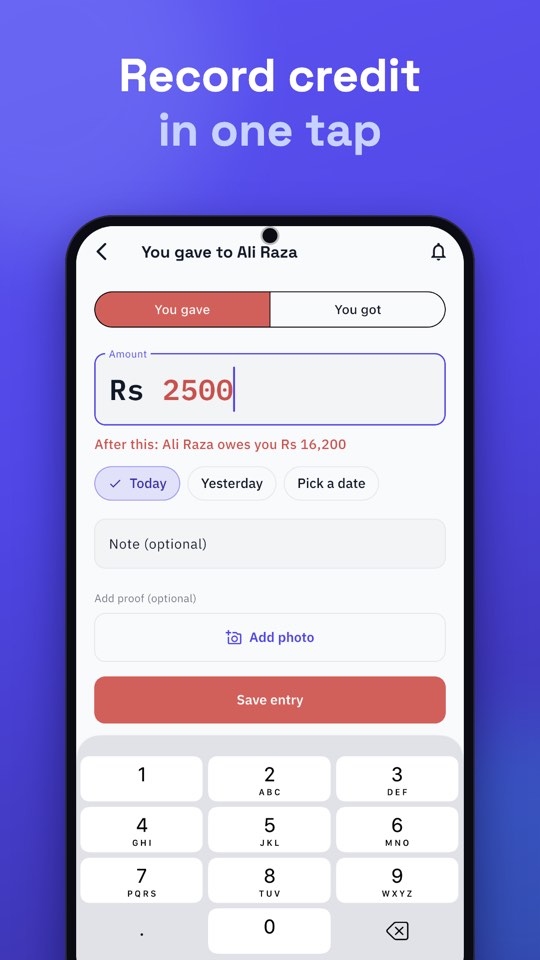
5. Record entries
- You gave: you gave goods or money on credit; the customer owes you more.
- You got: you received a payment; the customer owes you less.
Balances read in plain words, such as “Ali Raza owes you Rs 13,700”: red for money you will get and green for money you will give.
6. Add cash, bank and expenses
Use the Cash Book for daily cash in and out, Bank Book for bank accounts, and Expenses with categories you can rename. See cash book vs khata vs bank book.
7. Send your first reminder
On Home, tap the bell, choose a customer with a balance and tap Send reminder. WhatsApp opens with the message ready; you press Send. Nothing is sent automatically.
8. Protect and back up
- App Lock: set a 4-digit PIN in Settings; fingerprint or Face ID is optional.
- Backup: Munshi saves a copy on the phone daily. Connect Google Drive in Settings → Backup & restore for another. See how to back up on Google Drive.
- Quicker sign-in: after signing in you can set a PIN or passkey; see sign in without an SMS code.
What to do next
Record every credit and payment at the moment, count your cash each evening, and check the total owed every week. The daily routine is in how to manage udhaar digitally. If you get stuck, the Support page has answers, and Settings → Help has Report a problem.
Your first week: what to do on each day
You do not need to learn everything at once. A gentle first week looks like this:
- Day 1. Install, sign in, choose your language, add your business and your five biggest customers with their balances.
- Day 2. Record every credit and payment as it happens. Add short notes. Notice how quickly it becomes automatic.
- Day 3. Open the Cash Book and record cash in and cash out. Count the drawer at closing and compare.
- Day 4. Send your first WhatsApp reminder from the bell. Read the message before you press Send.
- Day 5. Share a customer statement as a PDF to yourself and open it on another phone.
- Day 6. Turn on App Lock, and connect Google Drive and back up.
- Day 7. Add the rest of your customers, and look at Home: what you will get and what you will give.
Things that surprise new users
The balance is in words. Instead of a column of numbers you see “Ali owes you Rs 3,500”. Red means money you will get; green means money you will give.
Entries are instant. They are saved on the phone before anything goes to the cloud, so a weak signal does not slow you down. A small notice at the top tells you when you are offline and that entries will sync by themselves.
Mistakes are recoverable. A deleted entry waits 14 days in the Recycle bin. Wrong amounts can be edited. If a balance ever disagrees with its entries, Munshi tells you and offers a Correct button.
Reminders are yours. Munshi never sends a message by itself. It opens WhatsApp with the text ready, and you press Send.
Troubleshooting the first sign-in
- The SMS code does not arrive. Check the number you typed, wait for the resend timer, and use “Resend code”. The code may fill in by itself when the SMS arrives.
- Wrong number. Use “Wrong number? Change it” on the code screen.
- You are offline. The first sign-in needs a connection. After that, daily entry works without one.
- New phone. Sign in with the same number and your records sync back.
If a problem persists, the Support page has answers, and in Settings → Help you can use Report a problem to mark something on a screenshot and send it to us.
Habits that make Munshi worth it
- Record at the moment. The app is fast so that you can.
- Use notes. A bill number or item name saves an argument later.
- Count your cash each evening. The Cash Book makes the comparison simple.
- Pick one reminder day a week. Consistency is kinder than random chasing.
- Back up weekly, after you have recorded the week.
When you want to go deeper, read seven small habits of a khata that always balances and how to manage udhaar digitally, and if you have a list of customers in a sheet, how to import them instead of typing each one.
Where to get help
If you get stuck at any step, you are not on your own. The Support page answers the most common questions in plain words, from backups to App Lock. Inside the app, Settings → Help has Report a problem, which lets you mark the issue on a screenshot and send it to us, and Settings → Support Munshi has an option to copy technical details such as your version and phone model, so that your message to us includes everything we need. Munshi is made by DIGIT, and we read what you send.