 Munshi
You can run a khata app entirely in Urdu on an Android phone: install it, sign in with your phone number, choose Urdu in Settings, add a customer and record your first entry, all in about ten minutes. Here is the whole setup in order, using Munshi, which is free on Android and iPhone and works offline.
Before you start
You need an Android phone with internet for the first sign-in, and your own phone number. After that, the app works offline. Keep a few customers’ names and balances handy so you can add real data and see it work.
Step 1: install Munshi from Google Play
Open Google Play, search for Munshi Khata App and tap Install. Open it when it finishes.
Step 2: sign in with your phone number
Enter your phone number. We text you a 6-digit code; type it in. There is no password to remember. If you get a new phone later, sign in with the same number and your records come back from the cloud.
Step 3: switch the app to Urdu
Open Settings → Language and choose Urdu. The whole app turns right to left: the menus, the buttons, your balances and the reminders and statements you share. You can switch back to English at any time; the setting only changes how things look and what language your exports use.
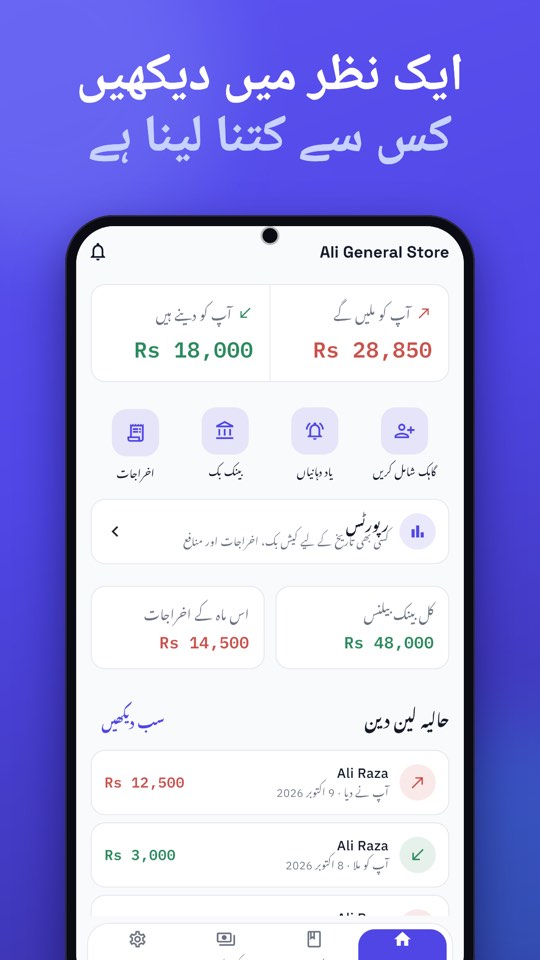
Step 4: add your business and first customer
- Enter your business name and type when asked.
- Tap Add customer. Type the name (in Urdu or English, as you normally write it) and the phone number, or pick the number from your contacts.
- If you already owe each other money, record the opening balance once.
Write names the way you and your customer both recognise them, and keep one account per person so balances stay right. Munshi warns you if a phone number is already used.
Step 5: record your first entry
Open the customer and tap You gave when you give goods or money on credit, or You got when you are paid. Type the amount, add a note if you like (“monthly grocery”), and save. The balance is written in plain words, red for money you will get and green for money you will give.
Step 6: send a reminder or statement in Urdu
- Reminder: tap the bell on Home, choose the customer and tap Send reminder. WhatsApp opens with an Urdu message ready; you press Send.
- Statement: open the customer, tap Statement, choose the dates, and share the PDF or Excel file. With the language set to Urdu, the statement is made in Urdu.
Details and wording are in polite payment reminder messages in Urdu and how to create a customer statement in Urdu.
Turn on the safety features
Two minutes more makes your khata safer. In Settings, turn on App Lock with a 4-digit PIN, and connect Google Drive for an extra backup. See how to back up business records on Google Drive.
If something does not look right
If a name or amount looks wrong, edit or delete the entry; deleted entries wait 14 days in the Recycle bin. If you are stuck, the Support page has answers, and in Settings → Support Munshi you can copy your version details and send them to us. Once you are set up, managing udhaar digitally shows the day-to-day routine.