 Munshi
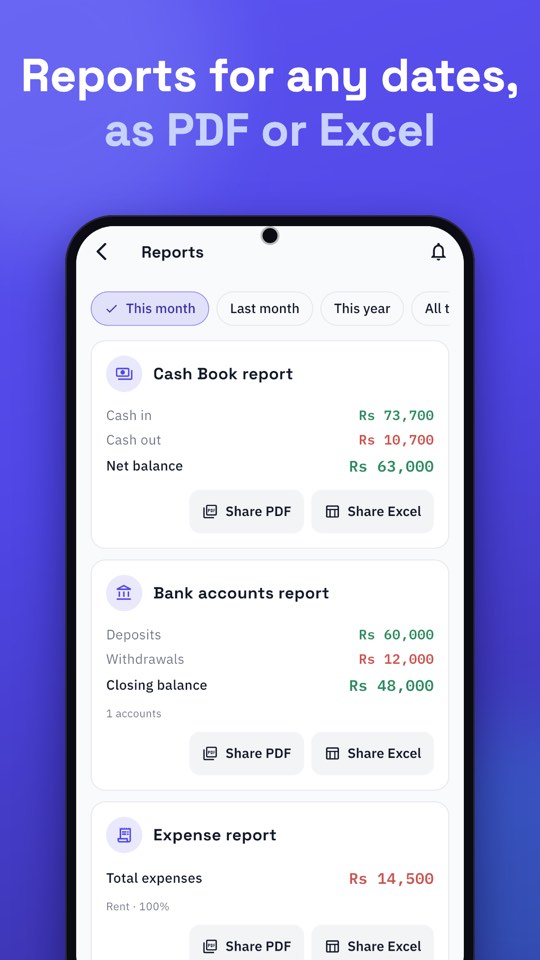
To share your khata and business reports with your accountant, open Reports on Home, choose the dates, open the Cash Book, Expense, Profit & Loss or Bank accounts report, and share it as a PDF or an Excel file. Set the app language to English first if your accountant prefers English. The whole thing takes a minute, and you never retype a number.
What your accountant usually needs
- A period: a month, a quarter or a year.
- Cash movements: your Cash Book report.
- Spending by category: the Expense report.
- An estimate of profit: Profit & Loss, understood as an estimate from what you recorded.
- Bank movements: the Bank accounts report or a bank statement.
- Who owes what: customer statements, if relevant.
How to share reports step by step
- Set the language. Go to Settings → Language and choose English or Urdu. Reports use the language at the moment you export.
- On Home, tap Reports.
- Pick the dates. Choose a month, last month, this year, all time, or your own range.
- Open the report you need: Cash Book, Expenses, Profit & Loss or Bank accounts.
- Share it as a PDF or Excel file, straight to WhatsApp, email or wherever you like.
PDF or Excel?
| Format | Best for |
|---|---|
| Reading and filing. Looks the same on every phone. | |
| Excel | Sorting, filtering and totalling. Good for the accountant’s own working. |
Share a customer’s khata
If your accountant needs to see a large customer balance, open the customer, tap Statement, choose the dates and share the PDF. It lists every entry with its date. Statements contain a customer’s name and balance, so share them only with people you trust.
A month-end routine for your accountant
- Record the last sales, expenses and bank movements of the month.
- Count the drawer and compare it with the Cash Book.
- Match the Bank Book with your bank statement.
- Open Reports for the month and share the Cash Book, Expense and Bank accounts reports as Excel.
- Share Profit & Loss as a PDF, saying that it is an estimate from your entries.
- Keep the same set every month, so your accountant knows what to expect.
Common questions from accountants
- “Which dates does this cover?” Write the dates in your message; the report is made for the range you chose.
- “Is this cash or credit?” Credit sales live in customers’ accounts; the Cash Book holds actual cash. See cash book vs khata vs bank book.
- “Can I sort this?” Send the Excel file.
- “What about household money?” Keep it out of the business, or record it as its own category.
A short checklist before you send
- Record every sale, expense and bank movement for the period first.
- Compare the Bank Book with your bank statement.
- Keep personal money out, or in a Personal khata.
- Tell your accountant that Profit & Loss is an estimate based on your entries.
What does it cost?
PDFs for this month and last month are free. A PDF for longer dates, and any Excel file, open after a short ad that you choose to watch; those buttons are marked “Ad”. If no ad can load, the file is made anyway. More on reports: business reports in Urdu and English and how to read a profit and loss report.
Preparing for a meeting with your accountant
A good meeting starts with good preparation, and that is easy when your records are in an app. Before you go, prepare four things. First, the period you want to discuss, written clearly. Second, the reports for that period: Cash Book, Expense, Profit & Loss estimate and Bank accounts, in the format your accountant prefers. Third, a list of questions, such as whether a certain expense is treated a certain way. Fourth, any unusual events, such as a large purchase, a loan or a seasonal spike. Sending the files a day early lets your accountant read them before you meet, and the meeting becomes a conversation instead of a data-entry session.
Language and format choices
Your reports follow the app’s language at the moment you export. A practical routine is to keep the app in Urdu for daily use and switch to English when you export for an accountant who works in English, then switch back. Choose Excel when your accountant wants to sort, filter or add figures, and PDF when they only need to read or file. If you are unsure, send both for the first month and ask which they used.
What not to send
- Customer statements you do not need to share. They show names and balances.
- Personal information beyond what is needed. Keep personal lending in a Personal khata and out of the business reports.
- Unfinished periods. Record everything for the dates first, or your accountant will work from incomplete numbers.
Understanding what the reports mean
It helps to know what each report is, so you can explain it. The Cash Book report lists cash coming in and going out for the dates. The Expense report groups what you spent by category and gives a total. Profit & Loss is an estimate built from what you recorded, not an audited figure. The Bank accounts report lists deposits and withdrawals for your accounts. Customer statements are separate: they list every entry for one person with a running balance. See how to read a profit and loss report for the reasoning behind the estimate.
Keeping a clean paper trail
For anything that matters at tax time or in a dispute, keep the underlying documents too: supplier bills, bank statements, receipts. Write bill numbers and references in your notes, so each entry points to its document. Save the reports you send, perhaps in a folder on Google Drive or your phone, named by month. If you ever need to show what you reported and when, you will have it.
A note on cost and ads
PDFs for this month and last month are free. Longer date ranges and Excel files open after a short ad you choose to watch, and if no ad can load, the file is made anyway. If you export often for your accountant, plan to do it in one sitting once a month. For the language side of reports, see business reports in Urdu and English, and for the habits that make the numbers dependable, daily cash record: a one-page format and phone method.